Introduction
If your Ledger device has been reset, you can restore access to your cryptocurrency accounts using your unique recovery phrase. This guide provides a step-by-step tutorial on how to perform this restoration process, ensuring you can regain control of your assets.
Disclaimer: This article is for informational purposes only and does not constitute financial advice. Always conduct your own research before using any platform or service.
What You Need Before You Start
Requirement | Details |
|---|---|
Ledger Device | Ledger Nano S, Ledger Nano X, Ledger Nano S Plus, or any future Ledger device |
Recovery Phrase | Your 12, 18, or 24-word recovery phrase written on your recovery sheet. This acts as the private keys for all your accounts. |
Ledger Live Application | For reinstalling coin applications after restoring your device. |
What Is Recovery Phrase Restoration?
Recovery phrase restoration is the process of re-entering your unique recovery phrase into a Ledger hardware wallet after it has been reset. A device reset can occur after a firmware update, if the device is running a very old firmware version, or if the incorrect PIN is entered three times.
Recovery phrase: A sequence of 12, 18, or 24 words that acts as the private keys for all your cryptocurrency accounts linked to your Ledger device.
Restoring your device with your recovery phrase allows you to regain access to your existing cryptocurrency accounts and manage your assets through your Ledger device again. It is crucial to always have your recovery phrase ready before starting a firmware update.
Step-by-Step Guide
Restore Your Ledger Device with Your Recovery Phrase
- Acknowledge Device Reset: If your device shows an 'Invalid PIN Device reset' error message, or if it has reset for other reasons, you will be on the welcome screen.
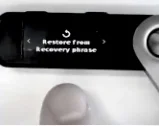
- Navigate to Restore Option: Scroll through the initial screens until you see the option to Restore from recovery phrase. Do not select Set up as new device, as this will create a new, empty wallet and will not provide access to your original funds.
- Select Restore: Choose Restore from recovery phrase on your device.
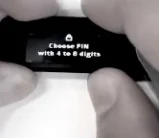
- Choose a PIN: Select a new PIN of your choice, between 4 to 8 digits. This can be the same PIN as before or a new one. Confirm your PIN by re-entering it.
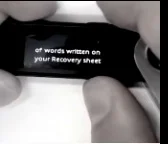
- Select Recovery Phrase Word Count: On the device screen, Select the number of words written on your recovery sheet. Choose the correct number (e.g., 12, 18, or 24 words).
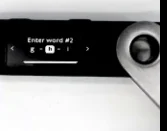
- Enter Recovery Phrase Words: The device will prompt you to enter each word of your recovery phrase one by one. Carefully select each word as it appears on your recovery sheet. If you select an incorrect word, you can clear the word and re-enter it.
- Confirm Restoration: After entering all words, the device will process the information. Once complete, it will display Your device is ready.
- Go to Dashboard: Navigate to the device dashboard.
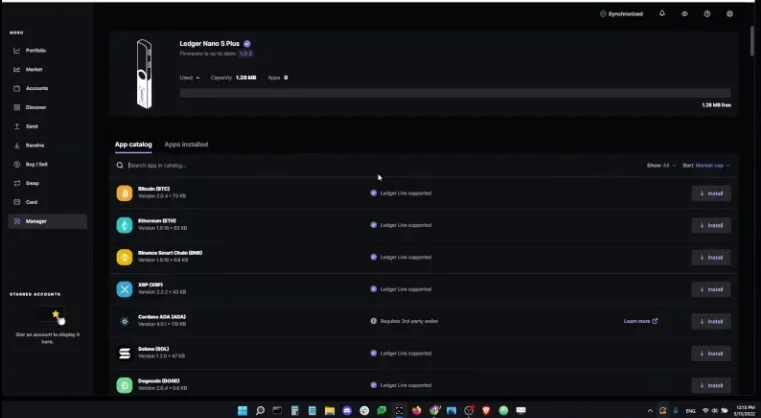
- Reinstall Apps (Ledger Live): Connect your Ledger device to the Ledger Live application on your computer or mobile device. Go to the Manager section and reinstall the necessary cryptocurrency applications one by one. Your coins are safe and do not depend on the apps being installed on your device.
- Re-enable Blind Signing (if applicable): If you previously used the Ethereum app with blind signing enabled, you will need to re-enable it within the app's settings on your device, as the device reset clears this setting.
Common Errors and How to Fix Them
Error | Cause | Fix |
|---|---|---|
Invalid PIN Device reset | Three failed PIN attempts | The device automatically resets for security. You must restore from your recovery phrase. |
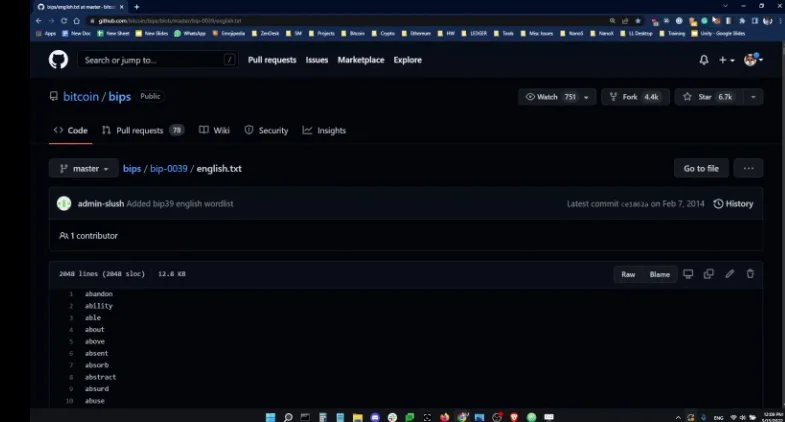
Invalid recovery phrase | Incorrect word order, misspellings, or incorrect recovery phrase type (e.g., Metamask 12-word phrase) | Check the spelling of each word against the BIP-39 wordlist. Ensure words are entered in the correct order. Do not import Metamask 12-word phrases; they are unsafe for Ledger devices. |
Selecting Set up as new device | Choosing the wrong option on initial setup | This creates a new, empty wallet. You must restart the process and select Restore from recovery phrase to access your original accounts. |
Incorrect word selected during entry | Typo or wrong word choice | On the device, you can clear the word and try again before proceeding to the next word. |
Frequently Asked Questions
Is restoring a Ledger device with a recovery phrase safe?
Restoring a Ledger device using a recovery phrase is a secure process designed to regain access to your accounts. It is crucial to only use the recovery phrase generated by a Ledger device or another trusted hardware wallet. Do not import a Metamask 12-word recovery phrase into a Ledger device, as this is unsafe because Metamask phrases have been online.
How long does it take to restore a Ledger device?
The restoration process, including entering the recovery phrase and device processing, is typically quick. The device will indicate "Processing" before confirming "Your device is ready."
What happens to my cryptocurrency apps after restoring?
After restoring your device, all previously installed cryptocurrency apps will be gone. You will need to use the Ledger Live application to reinstall these apps onto your device one by one. Your funds are not stored on the device itself or within the apps, so your coins remain secure.
What happens if I select "Set up as new device" by mistake?
If you select Set up as new device, your Ledger will generate a completely new recovery phrase and create a new, empty wallet. This will not give you access to your old accounts or funds. To recover your existing accounts, you must restart the setup process and choose Restore from recovery phrase.
Do I need to re-enable blind signing for the Ethereum app after restoration?
Yes, if you previously used the Ethereum app with blind signing enabled, you will need to re-enable this setting on your device after the restoration, as the device reset will have cleared this configuration.