How to Use the Ledger Wallet App to Manage Crypto
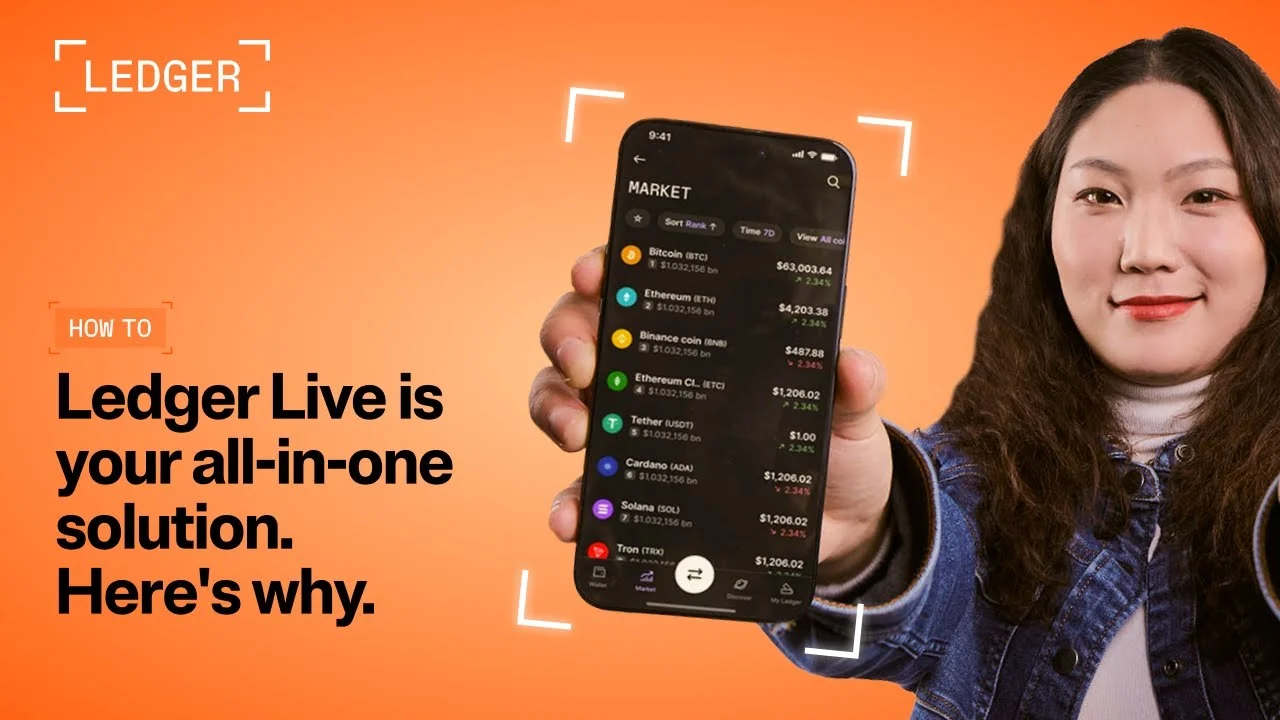
Managing your cryptocurrency securely is essential. The Ledger Wallet app, also known as Ledger Live, integrates with your Ledger hardware wallet to provide a secure environment for your digital assets. This guide will walk you through setting up the app and performing common actions like buying, swapping, and staking cryptocurrencies.
Disclaimer: This article is for informational purposes only and does not constitute financial advice. Always conduct your own research before using any platform or service.
What You Need Before You Start
Requirement | Details |
|---|---|
Device | Computer (Windows, macOS, or Linux) or compatible mobile device |
Software | Ledger Wallet app installer file |
Hardware | A Ledger device (e.g., Ledger Flex, Nano S, Nano X) |
Accessory | Original USB cable to connect your Ledger device to your computer |
What Is the Ledger Wallet App?
The Ledger Wallet app is a secure application designed to help you manage cryptocurrencies stored on your Ledger hardware device. It allows you to perform various operations, such as buying new digital assets, exchanging one cryptocurrency for another, and participating in staking to potentially earn rewards.
Unlike many other applications, the Ledger Wallet app stores your data directly on your phone or computer, meaning you do not need to sign in with an email and password. This design choice helps protect your privacy and keeps your data localized.
Ledger devices themselves are hardware wallets that physically secure your digital assets. They achieve this by storing your private keys offline in a specialized chip.
Private Keys: Unique, secret alphanumeric codes that allow you to access and manage your cryptocurrency. Keeping them secure is critical. Secure Element Chip: A tamper-resistant microchip that stores sensitive data, such as private keys, in an isolated and highly protected environment, similar to those used in passports.
Step-by-Step Guide
Downloading and Installing the Ledger Wallet App
- Go to the official Ledger website. Navigate to the Apps and Services section and click on Ledger Wallet.
- Click the Download button to proceed to the download page.
- Choose the appropriate version for your operating system (Windows, macOS, or Linux).
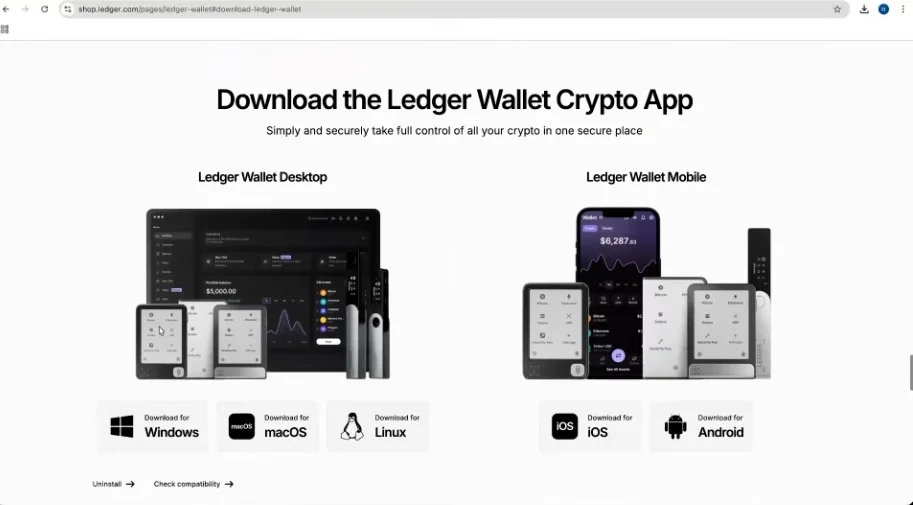
- Download the installer file, run it, and follow the on-screen instructions to complete the installation.
Connecting Your Ledger Device
- Connect your Ledger device to your computer using the original USB cable provided with your device.
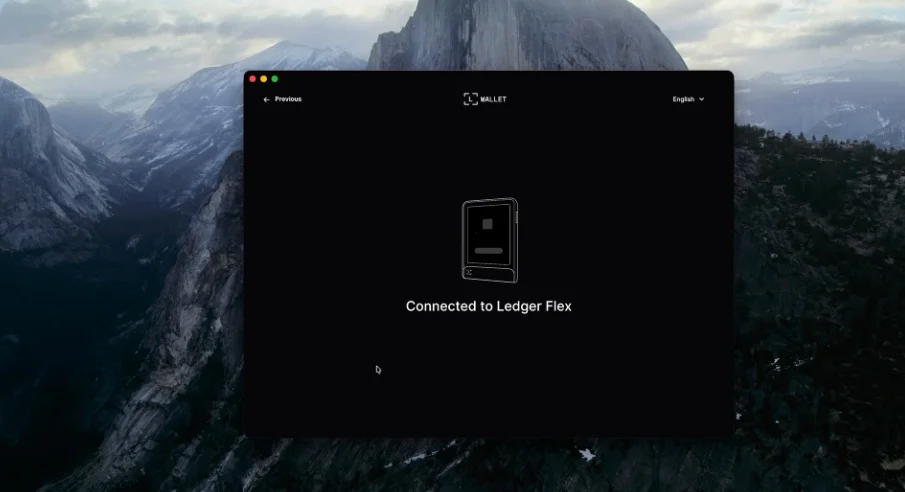
- Launch the Ledger Wallet app.
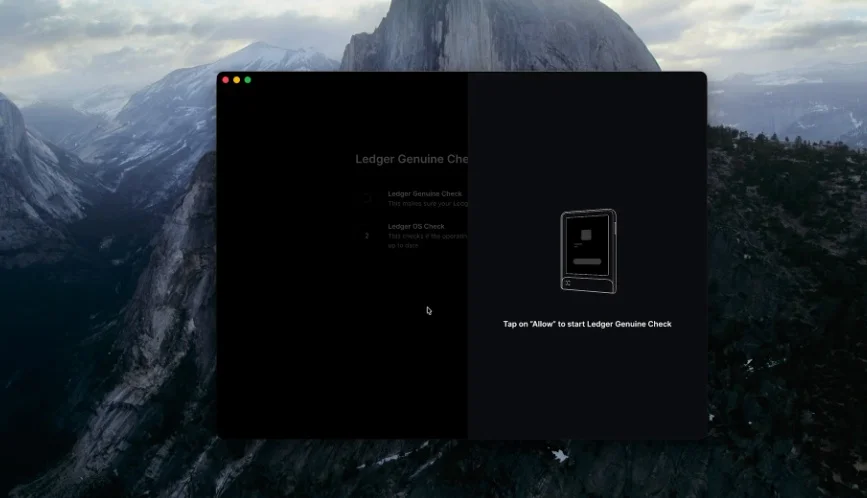
- Follow the on-screen instructions within the app to complete your device setup. This may involve creating a new account or restoring an existing one.
Installing Cryptocurrency Apps
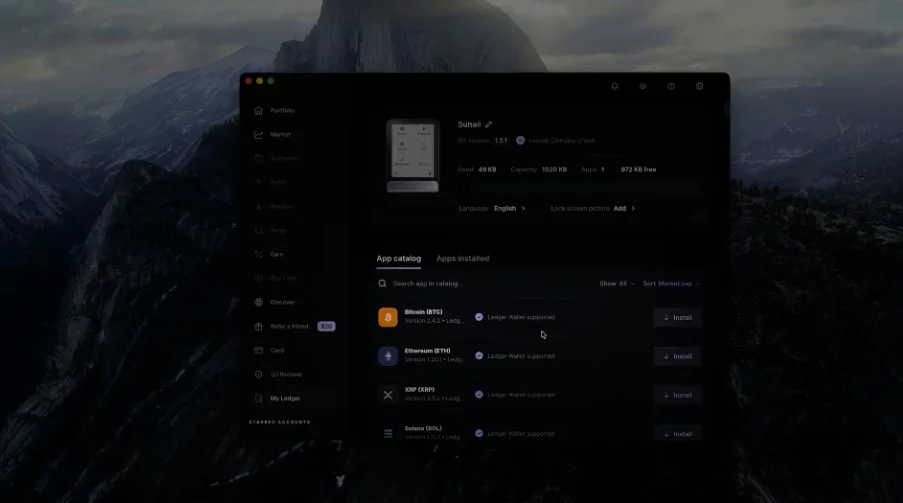
- Once your Ledger device is connected and set up, go to the My Ledger section in the app.
- Install the specific apps for the cryptocurrencies you wish to manage on your Ledger device (e.g., Bitcoin app, Ethereum app).
Buying Cryptocurrency
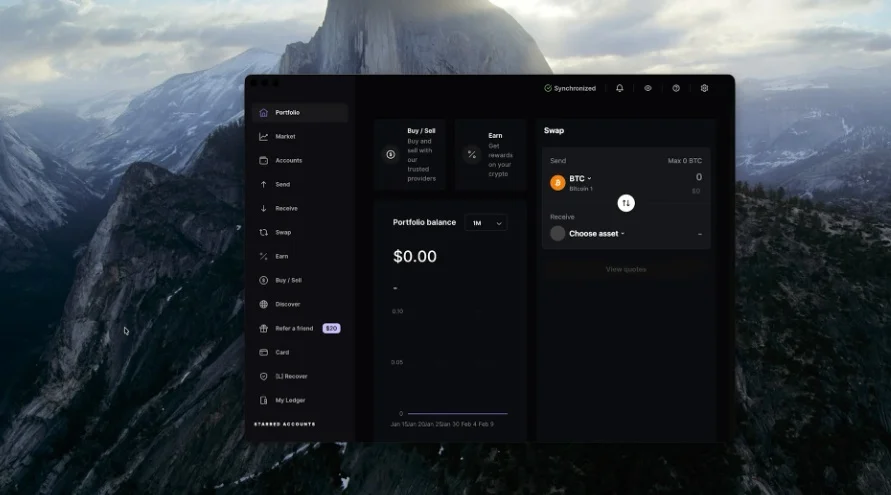
- In the Ledger Wallet app, go to the Portfolio section.
- Select the specific cryptocurrency asset you want to buy.
- Click Buy.
- Enter the desired order amount for your purchase.
- Select your preferred payment method (e.g., card, PayPal, Apple Pay).
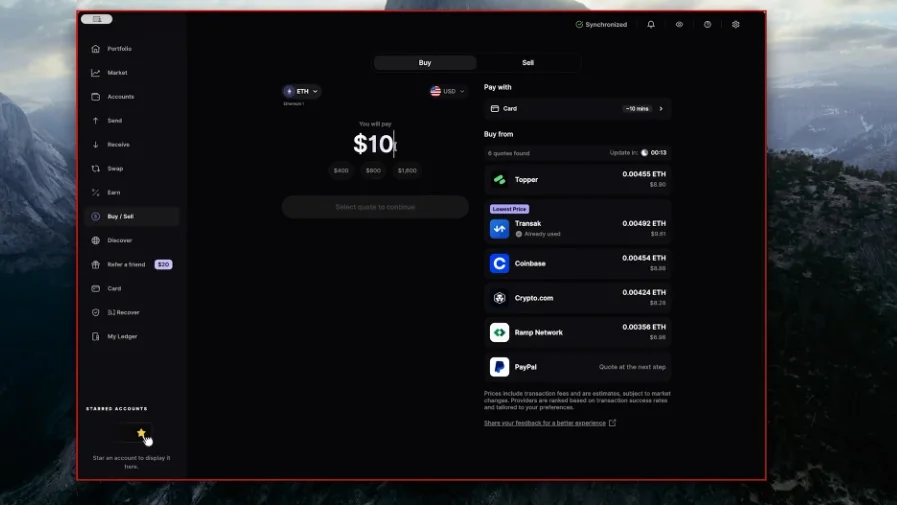
- Choose from the multiple providers available, comparing their rates.
- Confirm the order to proceed with the transaction.
Swapping Cryptocurrency
- Click Swap in the menu (or select from Portfolio).
- Select the cryptocurrency asset you want to swap.
- Enter the amount you wish to swap.
- Choose a provider whose rates best suit you.
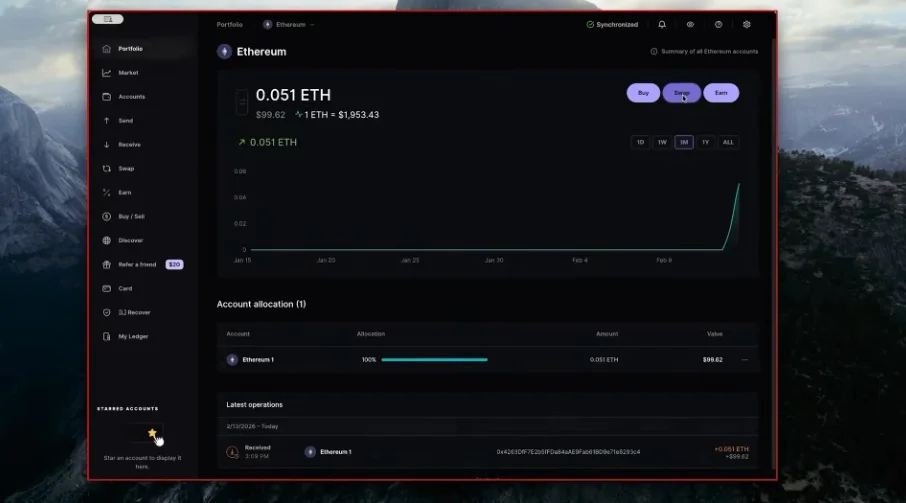
- Click Exchange.
- Confirm the swap operation directly on your Ledger device.
Staking Cryptocurrency
- Click Earn in the menu bar.
- Select the cryptocurrency you want to stake, such as Ethereum.
- Review the annual percentage yield (APY) offered.
- Click on the earn tab.
- Select a staking provider and review and agree to the disclaimer.
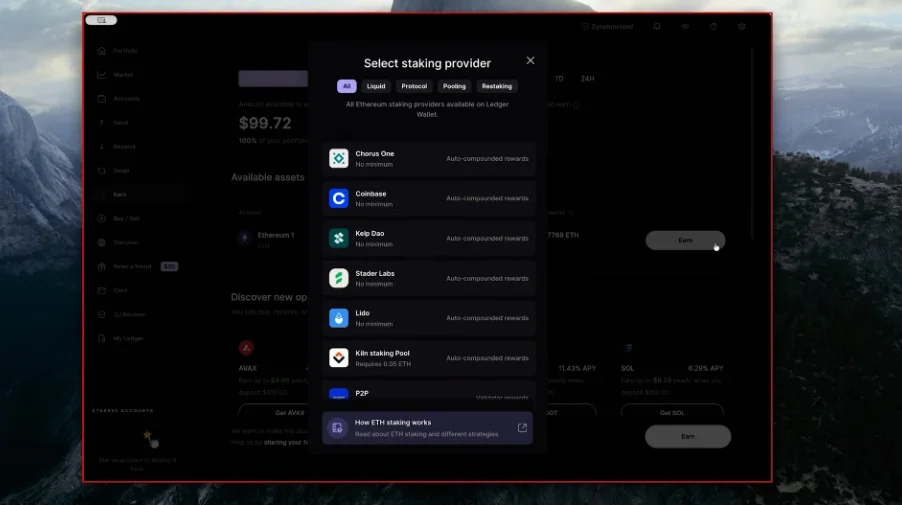
- Enter the amount of the cryptocurrency you want to stake, or click max to stake all available funds.
- Review the order details.
- Click on stake Ethereum (or the relevant cryptocurrency) to proceed.
- Review the network fee and summary of your staking order.
- Download the provider's app on your Ledger Wallet device if prompted, then finalize the staking process.
Frequently Asked Questions
What is a secure element chip?
A secure element chip is a specialized, tamper-resistant microchip used in Ledger devices. It is designed to isolate and protect sensitive data, such as your private keys, from online threats and malware, using technology similar to that found in passports.
Do I need to create an account with an email and password to use the Ledger Wallet app?
No, the Ledger Wallet app stores your data directly on your phone or computer. You do not need to sign in with an email and password to use it; only your Ledger device is required.
Does using the Ledger Wallet app cost anything?
While downloading and installing the Ledger Wallet app is free, some operations within the app, such as staking, may involve network fees. When staking, you will have the opportunity to review these network fees before confirming the transaction.
How does the Ledger Genuine Check work?
The Ledger Genuine Check is a feature within the Ledger Wallet app that verifies your Ledger device is official and ensures its operating system is up to date. This process helps confirm the authenticity and security of your hardware wallet.