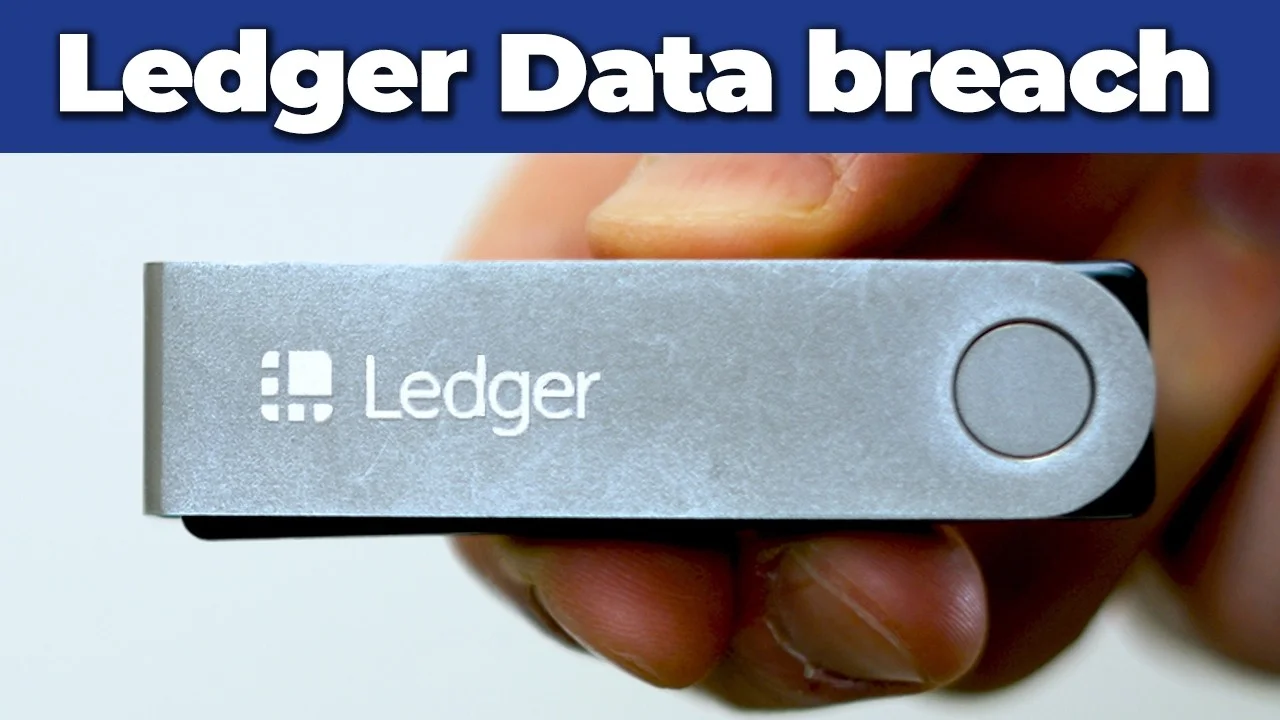
A Ledger hardware wallet helps keep your cryptocurrency private keys offline, protecting your digital assets from online threats. Setting up your device properly is a crucial first step in securing your holdings. This guide will walk you through the process of configuring your new Ledger Nano X, from installing the necessary software to securing your recovery phrase.
Disclaimer: This article is for informational purposes only and does not constitute financial advice. Always conduct your own research before using any platform or service.
What You Need Before You Start
Requirement | Details |
|---|---|
Device | Ledger Nano X hardware wallet |
Cable | Compatible USB cable |
Software | Ledger Live app (downloaded and installed) |
Computer | A computer for installing Ledger Live |
What Is a Hardware Wallet?
A hardware wallet is a physical device designed to store your cryptocurrency private keys offline. This method keeps your digital assets protected from various online threats, such as malware or phishing attempts, by isolating the keys from internet-connected devices.
Setting up your Ledger Nano X involves configuring its security features, including a PIN code and a unique recovery phrase. This setup is essential because the device's secure chip ensures that your private keys remain inaccessible to unauthorized parties, enhancing the overall security of your cryptocurrency.
Hardware Wallet: A physical device that stores your cryptocurrency private keys offline in a secure chip. Private Keys: Unique cryptographic codes that grant access to your cryptocurrency assets.
Step-by-Step Guide
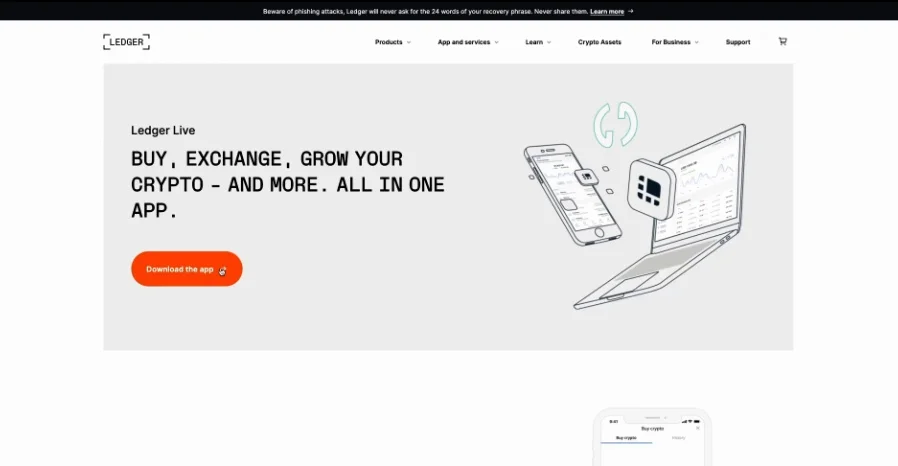
Download and Install Ledger Live
- Visit the official Ledger website at www.ledger.com/ledger-live/download.
- Download and install the Ledger Live app for your computer.
Set Up Your Ledger Nano X Device
- Connect your Ledger Nano X device to your computer using the compatible USB cable.
- Use the black and gray buttons on the front of the device to scroll through the navigation instructions displayed on the device screen.
- When the screen displays Set up as new device, press both buttons simultaneously to confirm your selection.
Choose Your PIN Code
- On your Ledger Nano X screen, choose a PIN code that is between 4 to 8 digits long.
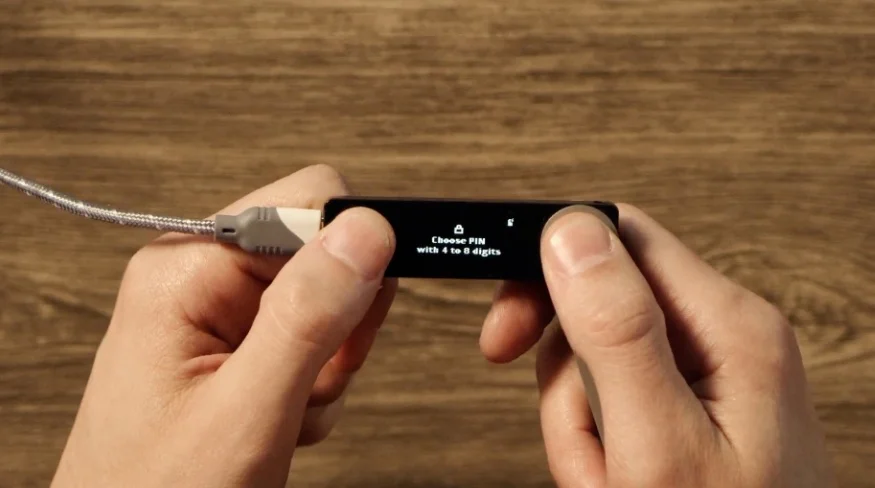
- After choosing your PIN code, press both buttons simultaneously to confirm it.
- Enter the PIN again as prompted on the device screen to confirm your selection.
Record Your Recovery Phrase
- The Ledger Nano X screen will display Write down your Recovery phrase. This 24-word phrase is critical; it is the only way to recover your assets if you lose access to your Ledger device.
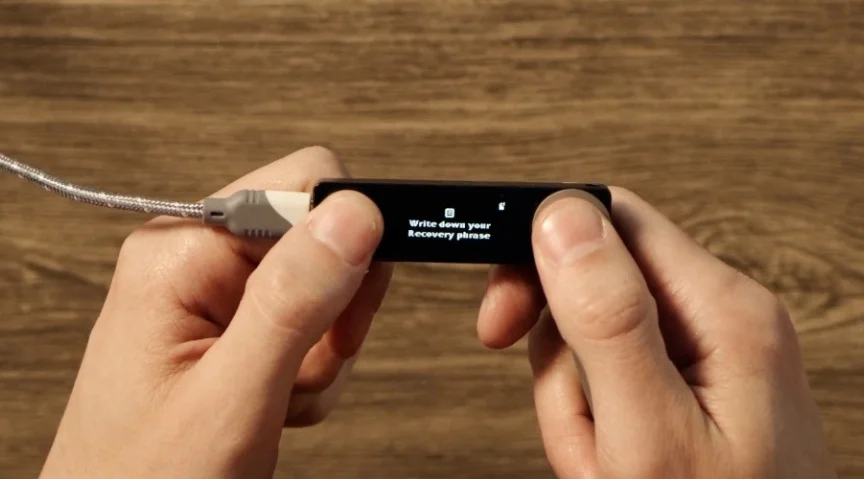
- Carefully write down your 24-word recovery phrase on the provided recovery sheet as each word is displayed on your device screen.
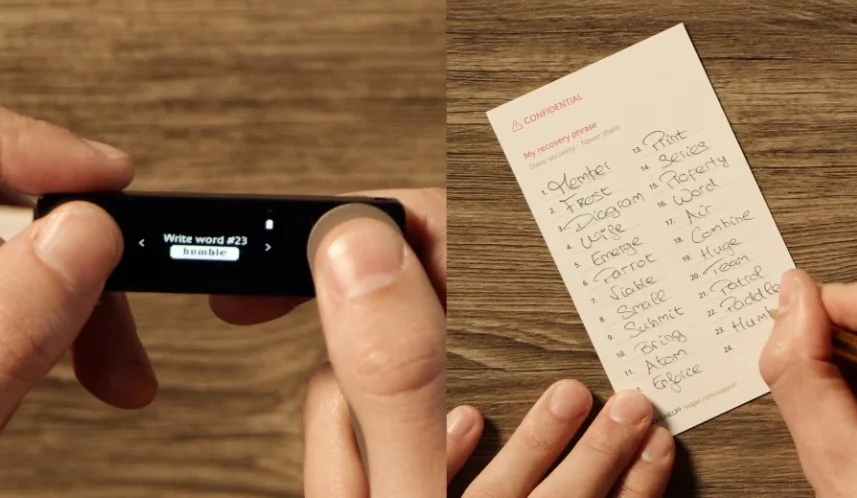
- It is important not to store your recovery phrase on apps, screenshots, or password managers, as this compromises the security purpose of your device. Never share your recovery phrase with anyone, not even Ledger.
Verify Your Recovery Phrase
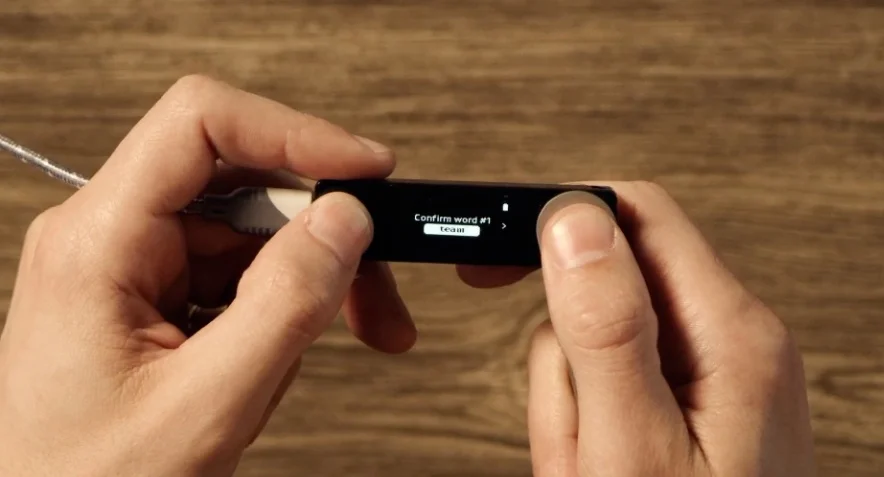
- Verify the recovery phrase by confirming each word in order from 1 to 24 on the device when prompted (e.g., when the device requests Confirm word #1).
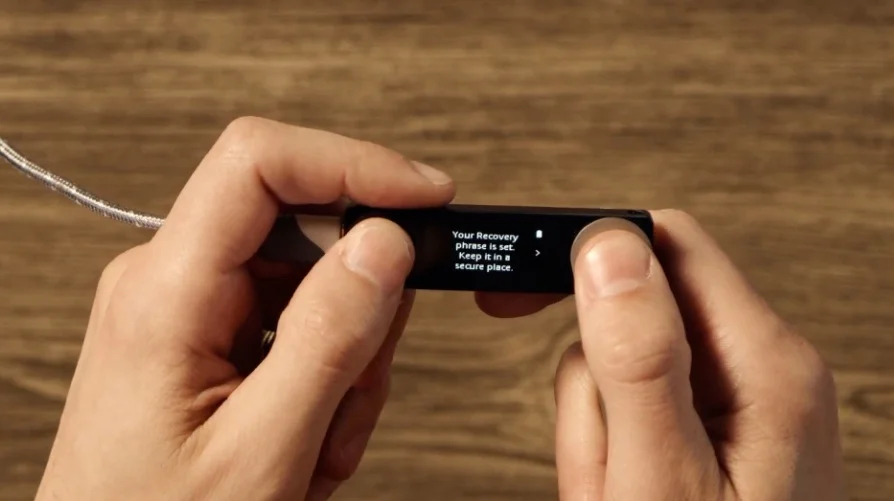
- Once all words are confirmed, the Ledger Nano X screen will display Your Recovery phrase is set. Keep it in a secure place.
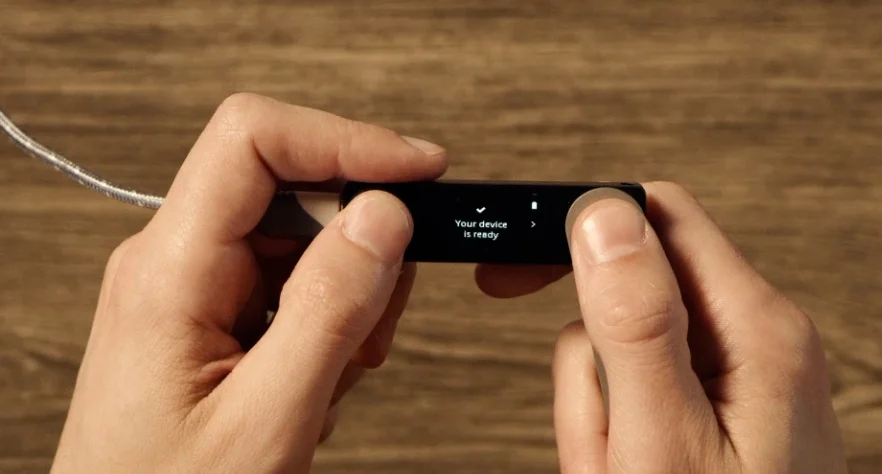
- The device will then display Your device is ready, indicating that the initial setup is complete.
Connect with Ledger Live
- Follow the instructions provided within the Ledger Live application on your computer to complete the final connection and setup steps.
- Upon successful completion, the Ledger Live desktop application will show an All good! message, often accompanied by celebratory visuals.

Common Errors and How to Fix Them
Error | Cause | Fix |
|---|---|---|
Recovery phrase stored digitally | Compromises the security purpose of the hardware wallet by making the private keys vulnerable to online threats. | Always write down your 24-word recovery phrase on the provided physical recovery sheet and store it in a secure, offline location. Never store it on any digital device or service. |
Frequently Asked Questions
Is my Ledger Nano X safe?
A Ledger Nano X stores private keys offline in a secure chip, designed to protect assets from online threats. The security of your assets depends significantly on keeping your recovery phrase secret and stored offline.
What happens if I lose my recovery phrase?
If you lose your recovery phrase and your Ledger device, you will lose access to your assets. The recovery phrase is the only method to regain access to your cryptocurrency if your device is lost, stolen, or damaged.
Should I share my recovery phrase?
Never share your recovery phrase with anyone. This includes friends, family, or even Ledger support. Ledger will never ask you for your recovery phrase.