What You Need Before You Start
Before you begin the restoration process, gather the following:
Requirement | Details |
|---|---|
Device | Your Ledger Nano S or Nano X hardware wallet |
Recovery Phrase | Your complete 24-word recovery phrase, precisely as you recorded it during initial setup. This is essential for wallet access. |
Computer | A computer to download and run the Ledger Live application. |
Software | The Ledger Live application (only if you are setting up on a new computer or have lost your previous Ledger Live installation). |
What Is Wallet Restoration?
Wallet restoration is the process of regaining access to your cryptocurrency assets on a Ledger hardware wallet using your unique recovery phrase. This procedure is crucial if your physical device is lost, damaged, stolen, or if you need to perform a factory reset.
By restoring your device, you link it back to the unique set of cryptographic keys derived from your recovery phrase, allowing you to manage the same cryptocurrency accounts you previously held. It essentially recreates your wallet on a new or reset device without moving any crypto.
Recovery Phrase: A sequence of 24 words that serves as the master key to your cryptocurrency wallet, allowing you to restore access to your assets.
Disclaimer: This article is for informational purposes only and does not constitute financial advice. Always conduct your own research before using any platform or service.
Step-by-Step Guide
Download and Install Ledger Live (if needed)
If you are using a brand new computer or have lost your previous Ledger Live installation, you will need to download and install the application.
- Open your web browser and navigate to the official Ledger download page.
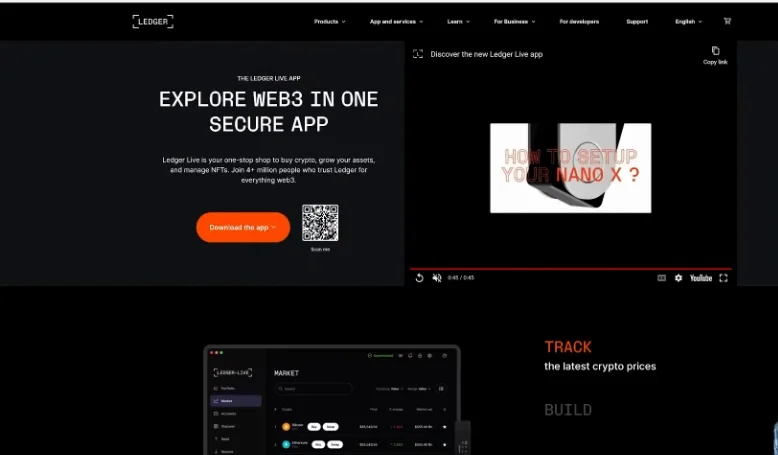
- Download the Ledger Live application appropriate for your operating system.
- Locate the downloaded file and double-click it to run the installer.
- Follow the on-screen prompts to complete the installation process, accepting the default settings.
- Once the installation is complete, Ledger Live will typically launch automatically.
Restore Your Ledger Hardware Wallet
This section guides you through restoring your Ledger Nano S or Nano X directly on the device.
- Connect your Ledger Nano S or Nano X device to your computer using its USB cable.
- On your Ledger device screen, navigate through the welcome screens by repeatedly pressing the right button.
- When the device prompts you to "Press both buttons", quickly press both the left and right buttons simultaneously.
- Continue navigating through the instructions by pressing the right button until you see the option "Restore from recovery phrase".
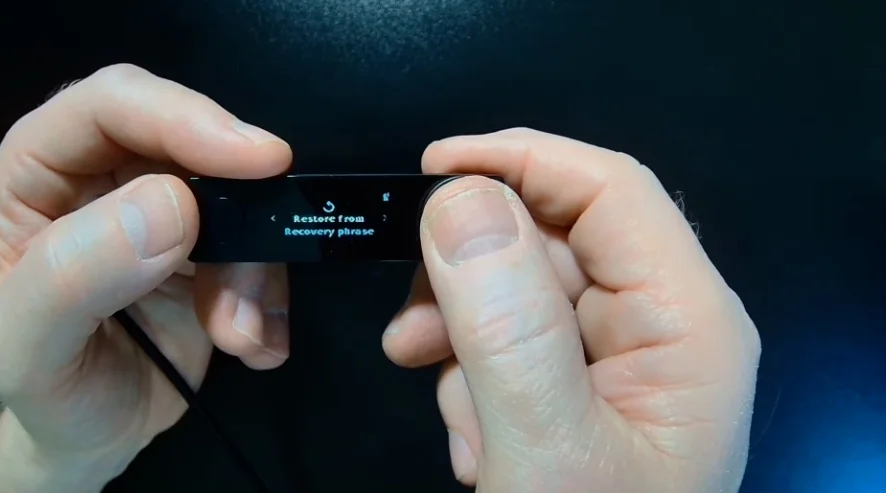
- Select "Restore from recovery phrase" by pressing both the left and right buttons simultaneously.
Set Your PIN Code
You will now set a new PIN code for your restored device. Choose a PIN between 4 and 8 digits.
- On your Ledger device, the screen will prompt you to set up your PIN. Press both the left and right buttons simultaneously to begin.
- Navigate using the left and right buttons to select the first digit of your desired PIN. Press both the left and right buttons simultaneously to confirm the digit.
- Repeat this process for each subsequent digit until you have chosen a PIN between 4 and 8 digits long.
- Once you have chosen your PIN length, navigate to the checkmark icon and press both the left and right buttons to confirm your selection.
- Re-enter the exact same PIN code when prompted to confirm it.
Enter Your 24-Word Recovery Phrase
Carefully enter your recovery phrase directly into your Ledger device.
- After setting your PIN, your device will ask you to enter your recovery phrase. Press both the left and right buttons to continue.
- Select the length of your recovery phrase (typically 24 words) by navigating with the right button and pressing both the left and right buttons to confirm.
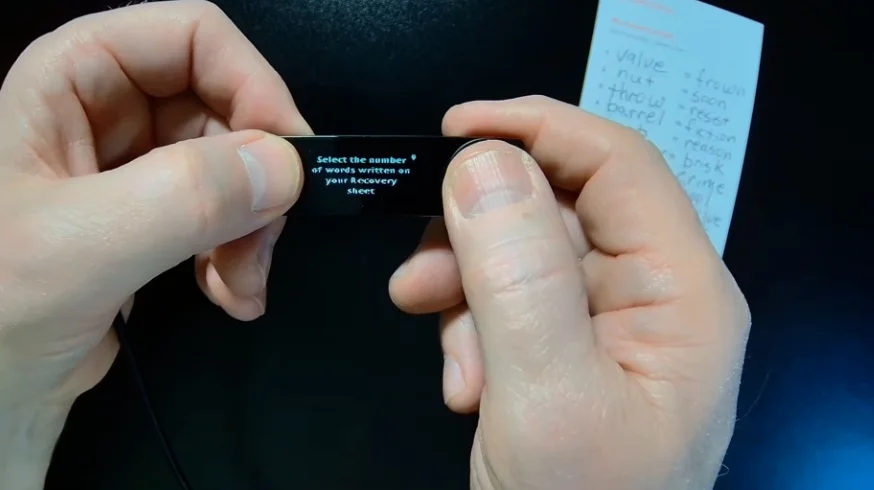
- Begin entering the first letter of your first recovery word by navigating with the left or right buttons and pressing both the left and right buttons to confirm each letter.
- As you enter letters, the device will suggest words from its standardized list. Navigate to find your correct word and press both the left and right buttons to select it.
- Repeat this process for each word in your 24-word recovery phrase, ensuring you enter them in the correct numerical order.
- After entering the last word, the device will process and then indicate it is "Ready". Navigate to the dashboard.
Restore Accounts in Ledger Live
There are two primary scenarios for restoring your accounts in Ledger Live, depending on whether you're using a new or existing installation.
Scenario 1: New Ledger Live Installation
If you performed a clean installation of Ledger Live, you will need to add your accounts.
- In Ledger Live, navigate to the Accounts section on the left sidebar.
- Click the Add account button.
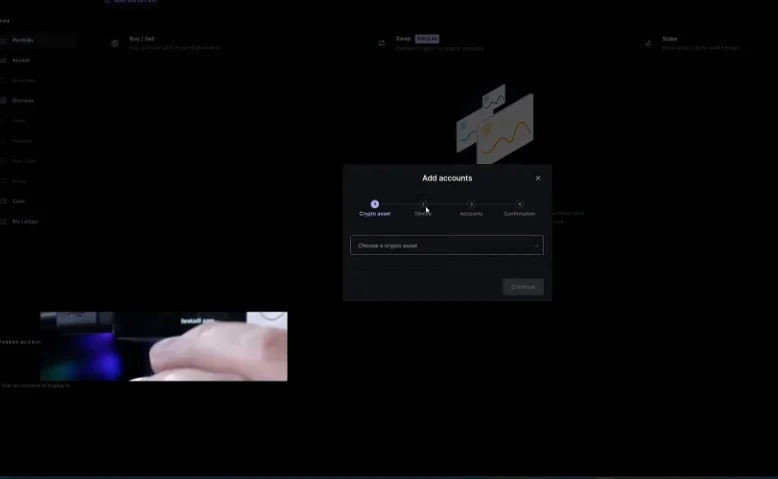
- Select the cryptocurrency you wish to restore (e.g., Bitcoin) and click Continue.
- Ledger Live will check if the corresponding application for that cryptocurrency is installed on your device. If it is not, Ledger Live will automatically install it.
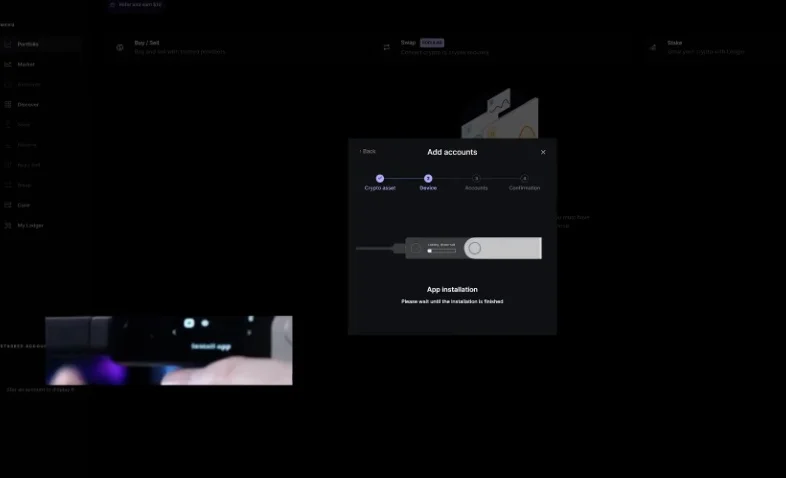
- On your Ledger device, open the requested cryptocurrency app (e.g., the Bitcoin app) by navigating to it and pressing both the left and right buttons.
- Ledger Live will scan your device for existing accounts associated with that cryptocurrency.
- Once found, select the accounts you wish to add to Ledger Live and click Add account.
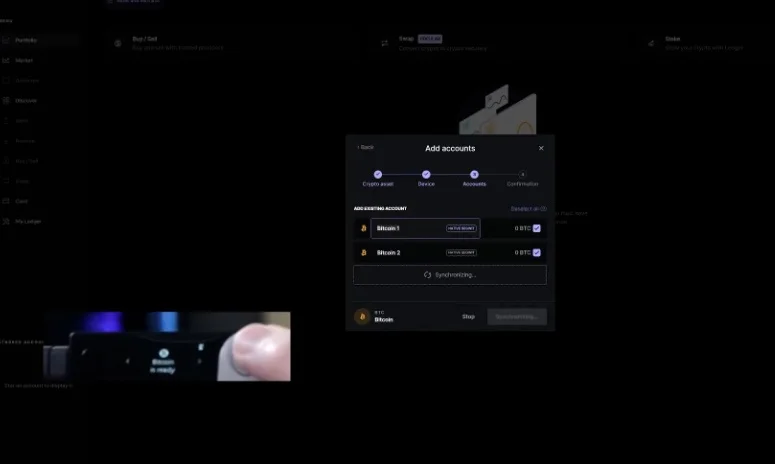
- Repeat these steps for all cryptocurrencies you previously held on your device.
Scenario 2: Existing Ledger Live Installation
If you already have Ledger Live installed with your accounts listed, you can verify and re-enable access after restoring your device.
- In Ledger Live, go to your Accounts list.
- For each account you previously had, click on the account and then select the Receive option.
- Click Continue in Ledger Live.
- If the required app for that account is not installed on your Ledger device, Ledger Live will automatically install it.
- On your Ledger device, open the requested cryptocurrency app.
- Ledger Live will display a receiving address. On your device, verify that the address displayed matches the one in Ledger Live.
- Approve the address on your device by pressing both the left and right buttons. This action confirms that your restored device matches the account.
- Repeat this process for all your existing accounts in Ledger Live.
Perform a Genuine Check
It is good practice to perform a genuine check to confirm the authenticity of your Ledger device after restoration.
- Ensure your Ledger device is connected to your computer and displaying its dashboard.
- In Ledger Live, navigate to the My Ledger section.
- Click on Check my Nano.
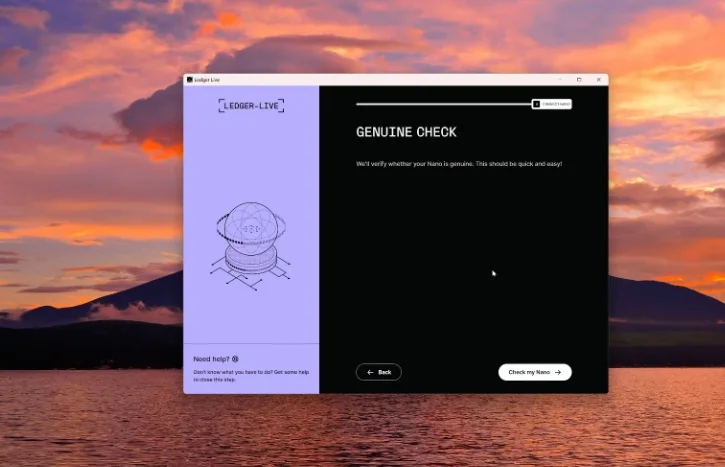
- On your Ledger device, you may need to allow Ledger Manager by pressing both the left and right buttons.
- Ledger Live will then confirm that your device is genuine.
Common Errors and How to Fix Them
Error | Cause | Fix |
|---|---|---|
Device setup as new | Accidentally selected "Set up as new device" instead of restore option. | Reset your device and ensure you select "Restore from recovery phrase" during the initial setup process. |
Typo during recovery phrase entry | Incorrect letter or word was selected while inputting your recovery phrase. | Use the backspace option on the device to correct individual letters, or select "Clear word" to re-enter the entire word. |
Recovery words entered out of order | The numerical order of your recovery phrase words was not followed during input. | Carefully restart the recovery phrase entry, ensuring each word is entered according to its correct numerical sequence. |
Ledger Live shows no accounts after device restore | Your device has been restored, but the cryptocurrency accounts have not yet been added back into your Ledger Live interface. | Click Add account in Ledger Live and select your cryptocurrencies one by one. Ledger Live will automatically reinstall necessary apps and find your accounts. |
Frequently Asked Questions
Is wallet restoration safe?
Wallet restoration is a secure process when carried out directly on your Ledger hardware device. However, the overall security of your cryptocurrency depends entirely on the confidentiality of your 24-word recovery phrase. If anyone gains access to this phrase, they can restore your wallet on their own device and access your funds.
How long does Ledger wallet restoration take?
The time required for Ledger wallet restoration varies. Entering the 24-word recovery phrase word by word on the device is often the most time-consuming part, though the device's auto-fill feature can help. Re-adding accounts in Ledger Live typically proceeds quickly, especially with the automatic application installation feature.
Does restoring my Ledger wallet cost anything?
No, restoring your Ledger hardware wallet from your recovery phrase does not incur any direct fees from Ledger. The process itself is free of charge.
What happens if I lose my 24-word recovery phrase?
If you lose your 24-word recovery phrase and your Ledger device is subsequently lost, damaged, stolen, or requires a factory reset, you will permanently lose access to your cryptocurrency assets. The recovery phrase is the sole method to restore your wallet and regain access to your funds.
Can I enter my recovery phrase into any software or website?
No, it is critical that you never enter your 24-word recovery phrase into any software, website, or application on a computer or phone. Your recovery phrase should only ever be entered directly into your Ledger hardware device itself. Entering it elsewhere, even if it appears to be an official interface, risks compromising your funds to malicious actors.
What happens if I forget my PIN after restoring?
Your PIN is specific to your device and is set during the restoration process. If you forget your PIN after restoring your device, you would need to reset your Ledger device to factory settings and perform the entire restoration process again, using your 24-word recovery phrase to set up a new PIN.