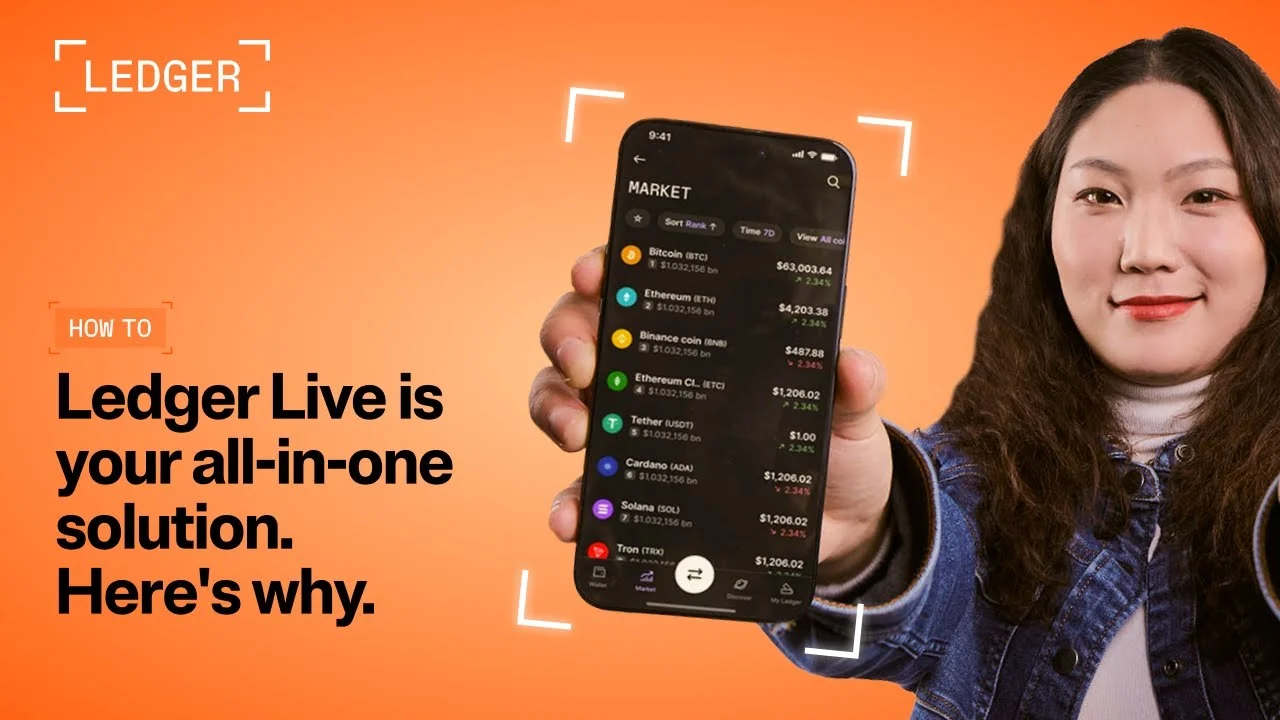
Managing your cryptocurrency assets with a Ledger hardware wallet involves using the Ledger Live application. Before attempting to send or receive a specific cryptocurrency or token, it's crucial to confirm whether it is supported within the Ledger Live application itself. This guide will walk you through the official methods to accurately check asset compatibility.
Disclaimer: This article is for informational purposes only and does not constitute financial advice. Always conduct your own research before using any platform or service.
What You Need Before You Start
Requirement | Details |
|---|---|
Device Type | Computer or mobile device |
Software | Ledger Live application |
Software Version | Latest version of Ledger Live (e.g., 2.54.0 or newer) |
Account | CoinMarketCap or CoinGecko (optional, for finding contract addresses) |
What Is Checking Crypto Asset Support?
When you use a Ledger hardware wallet, the Ledger Live application serves as your interface for managing your cryptocurrency assets. Checking crypto asset support means verifying if a particular coin or token can be directly viewed, sent, and received through Ledger Live. This is important because while your Ledger device may support a wide range of assets, not all of them are fully integrated into the Ledger Live application for direct management.
Ledger Live: An application used to manage cryptocurrency assets on Ledger hardware wallets.
Step-by-Step Guide
Method 1: Using the Official Ledger Crypto Asset List (GitHub)
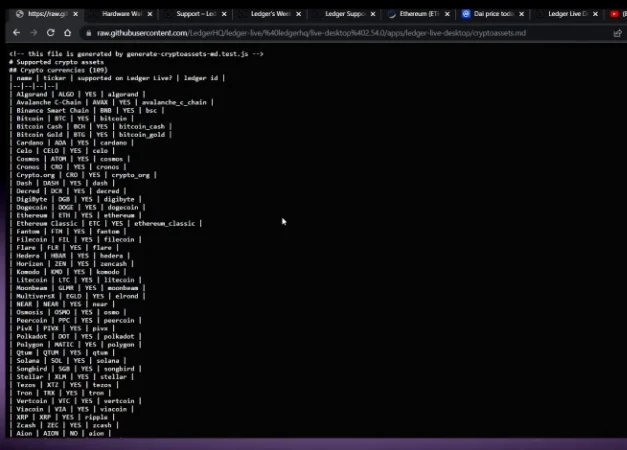
The most accurate and up-to-date information on supported crypto assets in Ledger Live is found on the official Ledger crypto asset list hosted on GitHub.
- Open the Ledger Crypto Asset List: Navigate to the official Ledger crypto asset list repository on GitHub.
- Verify Ledger Live Version: Look for the version number at the top of the GitHub list. Ensure this number matches the latest version of your Ledger Live application. If you are unsure of the latest version, you can check The Ledger website's download signatures tool.
- Understand Coin Support:
- Locate the "Coins" Section: Scroll to the top of the list to find the Coins section. These are cryptocurrencies with their own native blockchains (e.g., Bitcoin, Dash, Tezos).
- Check for "Yes" in Ledger Live Column: If a coin is listed and has Yes next to it in the Ledger Live support column, you can create an account for it directly in Ledger Live.
- Note "No" Status: If a coin has No in the Ledger Live support column (e.g., Flow), it means while your Ledger device supports it, you will need to use a third-party wallet to manage accounts for that coin, as Ledger Live itself will not display them.
- Understand Token Support:
- Locate the "Tokens" Section: Scroll down to the Tokens section of the list. Tokens are digital assets that run on an existing blockchain (e.g., USDC on Ethereum, DAI on Binance Smart Chain).
- Search for Token Using Contract Address: Avoid searching by ticker symbol (e.g., "USDC") as this can lead to false positives. Instead, you need the token's smart contract address. You can find this on platforms like CoinMarketCap or CoinGecko.
- Paste Contract Address into Search: Once you have the contract address for the specific token on a specific network (e.g., Ethereum), use your browser's search function (Ctrl+F or Cmd+F) and paste the full contract address.
- Interpret Search Results: If the contract address is highlighted in the list, it means the token is supported in Ledger Live for that specific network, provided you are on the listed Ledger Live version. If no result is found, it is not currently supported in Ledger Live for that network.
Method 2: Using CoinMarketCap to Find Contract Addresses
For tokens, finding the correct smart contract address is essential for accurate verification.
- Go to CoinMarketCap or CoinGecko: Open your web browser and navigate to CoinMarketCap (coinmarketcap.com) or CoinGecko (coingecko.com).
- Search for the Token: Use the search bar to find the specific token you want to check (e.g., USDC, DAI).
- Locate the "Contracts" Section: On the token's page, find the Contracts section.
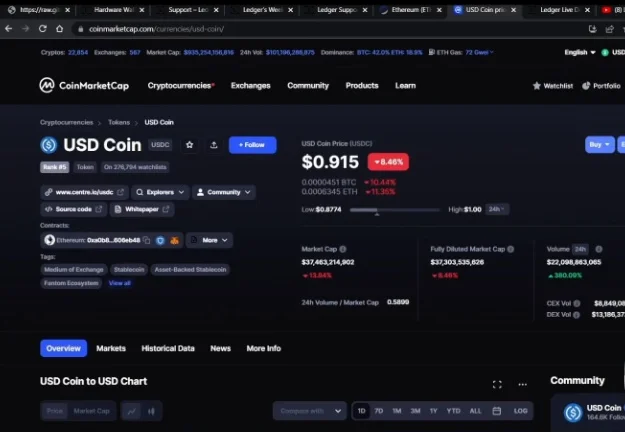
- Identify the Network-Specific Address: Tokens often exist on multiple blockchain networks. Use the drop-down menu or list within the Contracts section to find the contract address for the specific network you are interested in (e.g., Ethereum, Binance Smart Chain, Tron, Polygon, Avalanche).
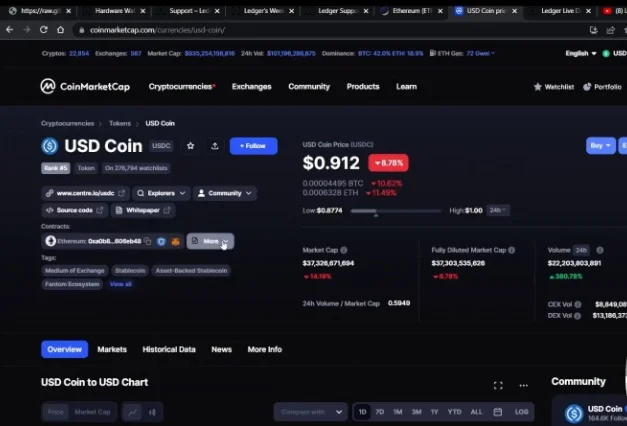
- Copy the Contract Address: Click the copy icon next to the relevant contract address to copy it to your clipboard.
- Verify on GitHub List: Return to the official Ledger crypto asset list on GitHub and follow Step 4.3 from Method 1 to paste and search for the contract address.
Common Errors and How to Fix Them
Error | Cause | Fix |
|---|---|---|
Token not visible in Ledger Live after sending | The token is not supported in Ledger Live on that specific network, or you are using an outdated Ledger Live version. | Your assets are still on your Ledger device. Use a compatible third-party wallet or blockchain explorer (e.g., Tronscan for Tron) to view and manage your balance. Ensure your Ledger Live is updated to the latest version. |
"Countervalue disabled" status shown in GitHub list | Ledger Live cannot display the fiat value of the asset. | Ledger Live will show the quantity of your coins/tokens, but a dash will appear instead of a monetary value. Your assets are still present. |
Using Ledger website's "Supported Crypto Asset List" | The Ledger website's list is often outdated. | Always use the official Ledger crypto asset list on GitHub for the most current information. |
Searching by ticker symbol for tokens on GitHub list | Ticker symbols can lead to false positives or multiple unrelated results. | Always search for tokens using their specific smart contract address for the target network. |
Frequently Asked Questions
Is checking crypto asset support on Ledger Live necessary?
Yes, it is crucial to check asset support to ensure that you can manage your desired cryptocurrency or token directly within the Ledger Live application. If an asset is not supported, you may need to use a third-party wallet.
What happens if I send an unsupported token to my Ledger device?
If you send a token that is not supported in Ledger Live to a compatible account on your Ledger device, the assets are still securely stored on your device. However, you will not be able to see or manage them within the Ledger Live application itself and will need to use a third-party wallet or blockchain explorer.
How do I know if a coin or token is "supported by Ledger" versus "supported in Ledger Live"?
"Supported by Ledger" means your Ledger hardware device can secure the asset. "Supported in Ledger Live" means you can directly manage that asset (view balance, send, receive) within the Ledger Live application. Assets supported by Ledger but not in Ledger Live require a third-party wallet interface.
What does "countervalue disabled" mean in the support list?
"Countervalue disabled" indicates that while Ledger Live can display the quantity of your asset, it cannot retrieve or show its corresponding fiat currency value (e.g., in USD or EUR). You will see a dash where the value would normally appear.